What is QueryBase?
QueryBase is a powerful suite of three enterprise data tools designed to query, explore, and analyze modeling data created from Visual Paradigm Desktop and committed to the cloud. It allows technical teams, analysts, and stakeholders to inspect design assets without needing a local desktop installation.
Overview of the Pre-Loaded Data
To help you evaluate QueryBase right out of the box, your Playground workspace has been pre-populated with cloud-committed data from a complete
ATM System project. Here is a quick briefing of what you will be querying:
- Workspace Name:
Apex Financial Services
- Project Name:
ATM System
- Key Diagrams:
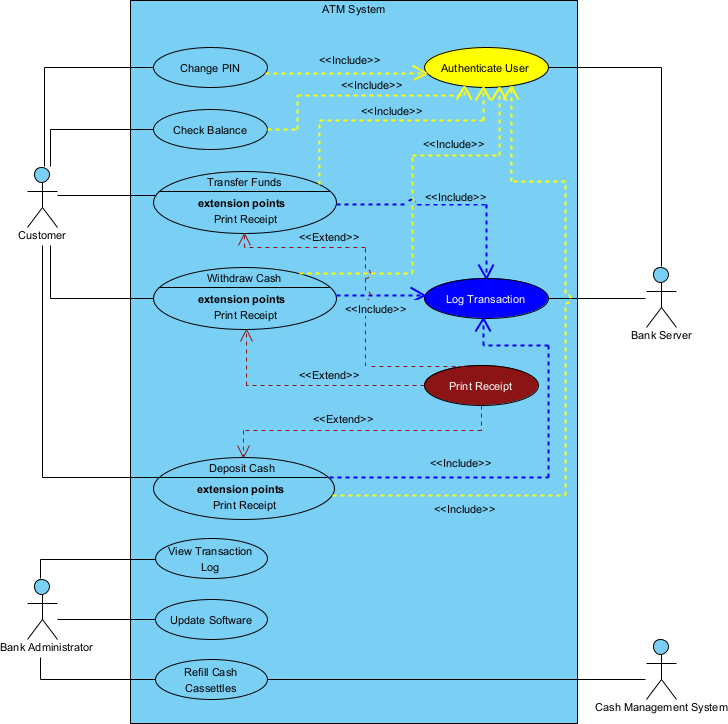
- Use Case Model: Features primary actors (Customer, Bank Administrator) and secondary systems interacting with core ATM functionalities.
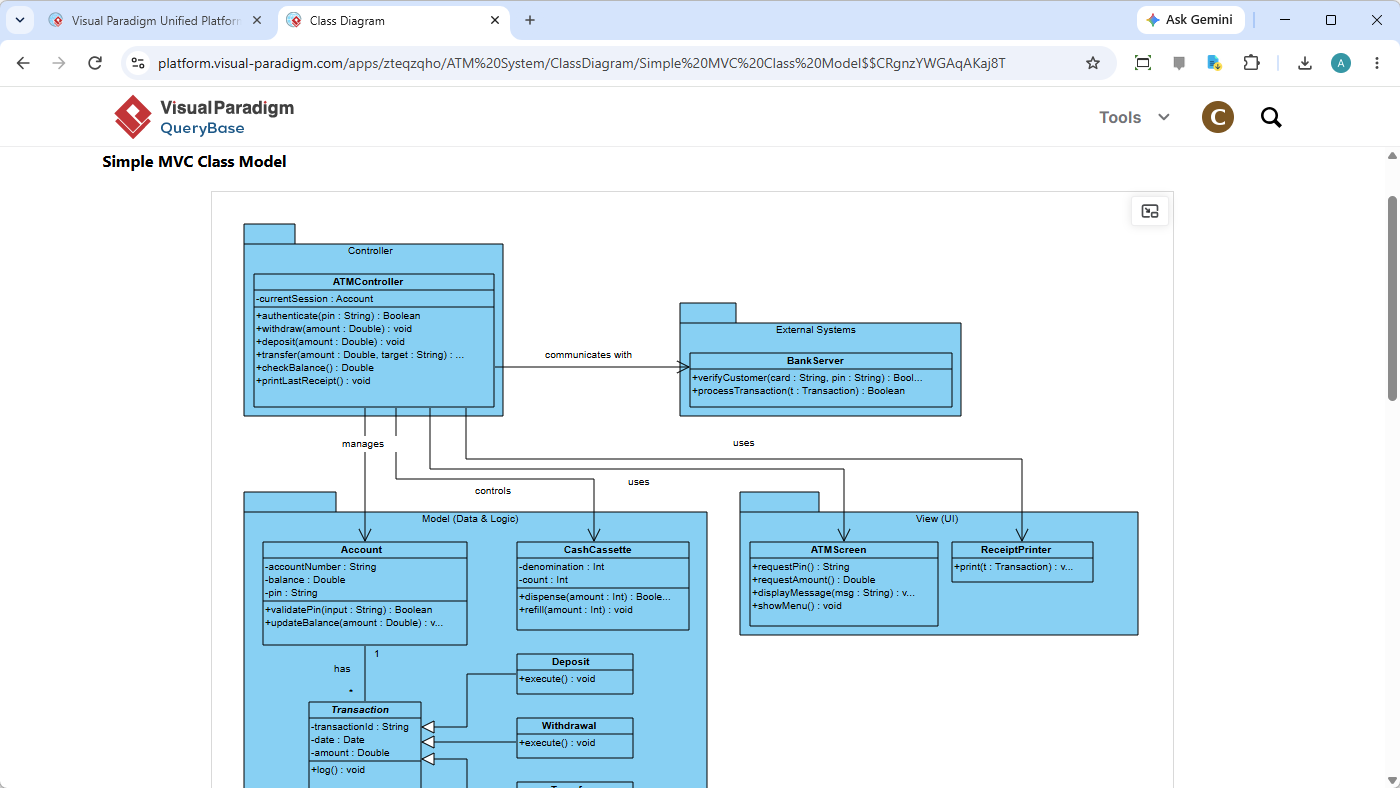
- Simple MVC Class Model: Contains structural domain classes (such as
Customer, Account, Transaction, CashCassette, and ATM) organized under packages like Model (Data & Logic).
1. Project Explorer: Browsing & Finding Models
The Project Explorer is your primary tool for navigating through workspaces, projects, diagrams, and element specifications hierarchically or via advanced search criteria.
Browsing Models
- Visit the Unified Platform.
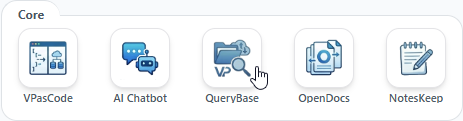
- Select QueryBase from the list of apps at the top header.
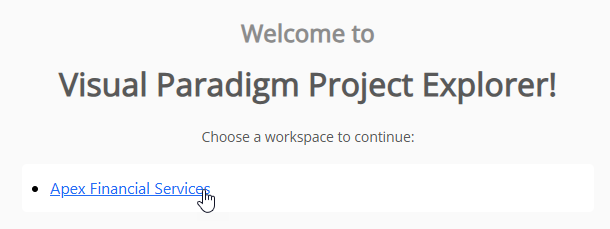
- You will land in the Project Explorer. Click on the workspace name Apex Financial Services to open it, bringing you to the Corporate Dashboard.
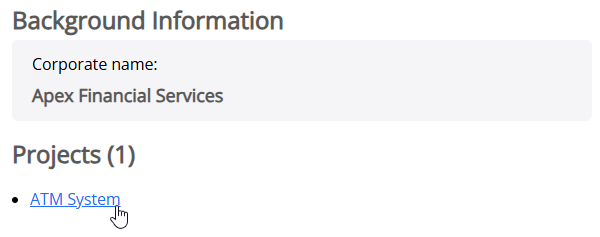
- Click on the pre-populated project ATM System. This opens the Project Dashboard, which lists your project diagrams grouped by type.
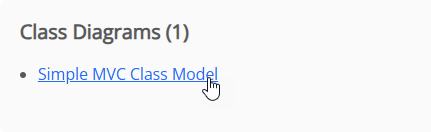
- Under class diagrams, click on Simple MVC Class Model.
 This opens the diagram viewing page.
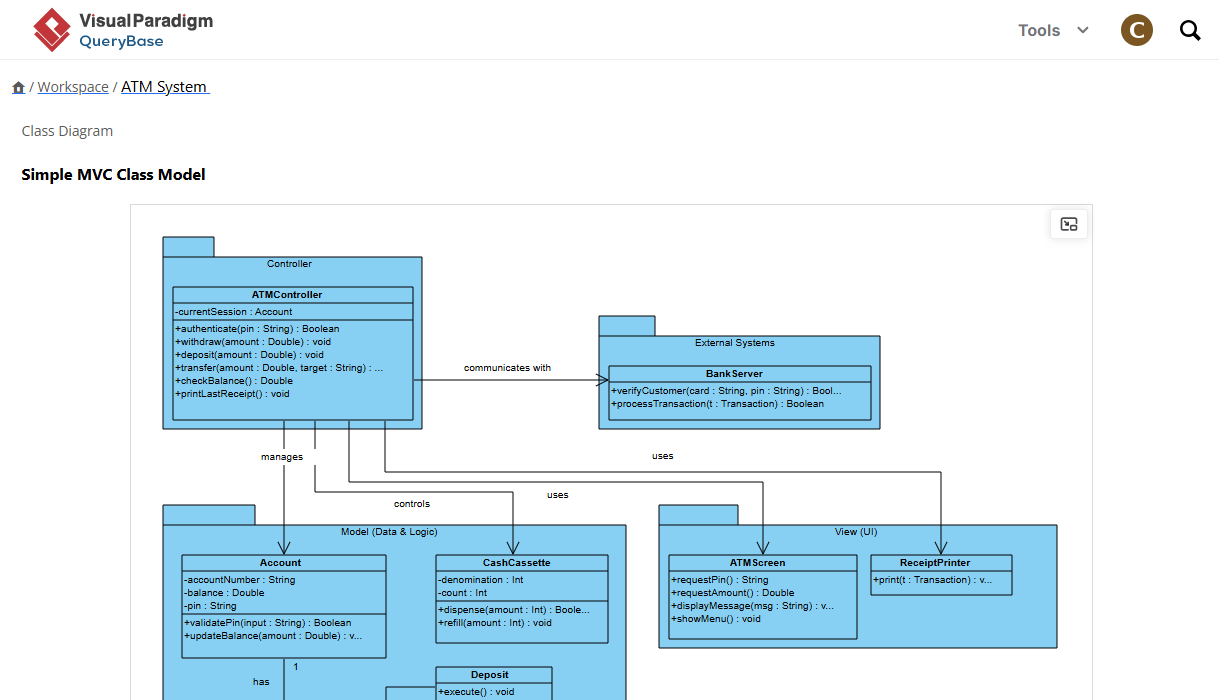
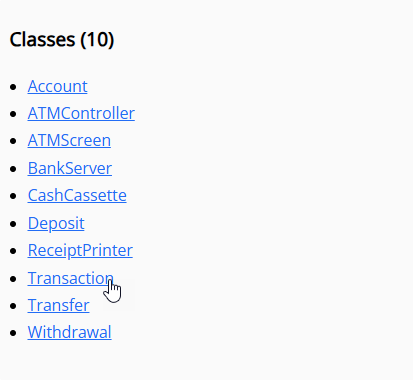
- Scroll down past the diagram image to view the tabulated list of classes, elements, and relationships. Click on the class Transaction to open its specification panel at the bottom of the page.
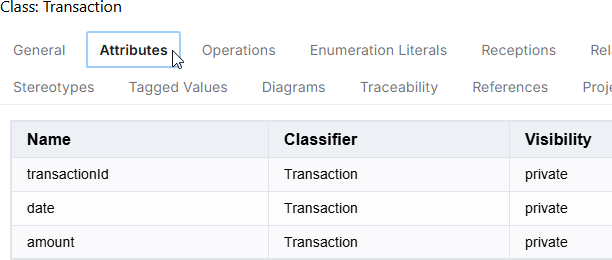
- Open the Attributes tab to review the complete data structure of the Transaction class.
Finding Models via Search
When working with large enterprise repositories where exact names or locations escape memory, the global search feature helps you locate items instantly.
- Click on the magnifier icon at the top bar to open the overlay search pane.

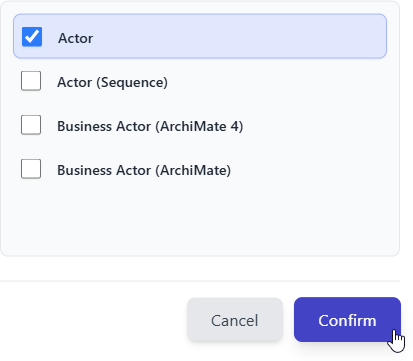
- To find the “Customer” actor, look at the input criteria areas for Project, Diagram, Diagram Element, and Sub Element. Under Diagram Element, click the + button next to the Types field, select Actor, and click Confirm.
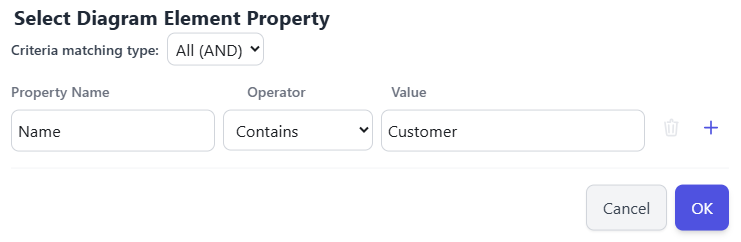
- Click the + button next to the Properties field. In the popup dialog, set
Property Name to Name, Operator to Contains, and Value to Customer, then click OK.
- Click Search. The matching Customer actor appears in the results table, showing its name, parent diagram, and project path.
- Click on the Customer search result to jump directly to its parent Use Case Diagram.

2. Query by Model
What it does & When to use it: Query by Model allows you to traverse relationships visually using chained queries. It is ideal when you know a starting element (like an actor) and want to discover connected elements (like associated use cases) to analyze feature coverage or plan development schedules.
Visual Reference: For this exercise, imagine the Use Case Diagram we explored earlier featuring the Customer actor connected via association lines to core functions like Withdraw Cash, Transfer Funds, and Deposit Cash.
Executing a Chained Model Query
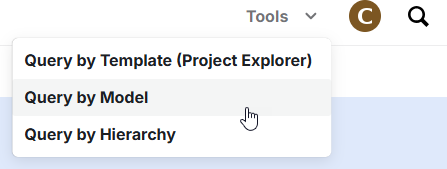
- Select Tools at the top right of QueryBase and choose Query by Model.
- By default, a Model Query component is presented. On the right configuration pane, under the Diagram Element section, click the Type in field and select Actor.
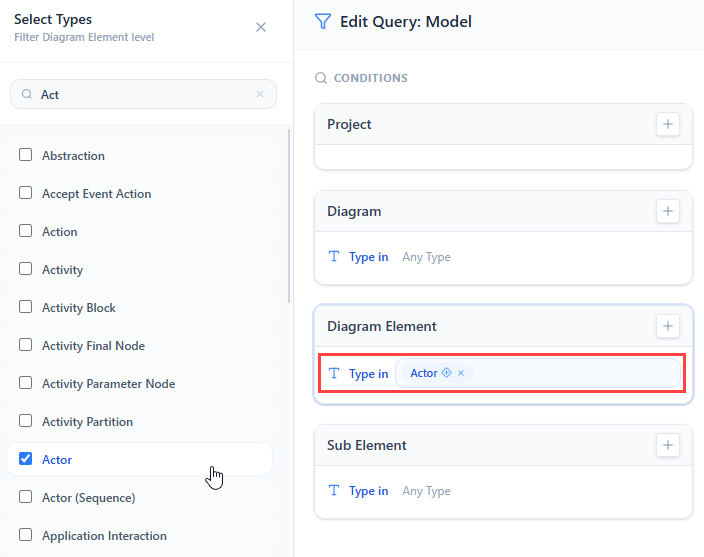
- Click Add Condition. The default condition is set to Name. Enter
Customer as the value.
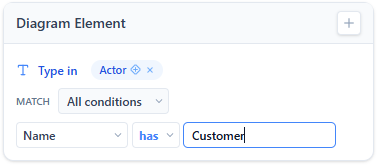
- Click Execute Query. The left pane populates with the Query Result showing the Customer actor.

- To find the use cases associated with this customer, click Add Chain Query on the right of the Model Query component and select Relationship.
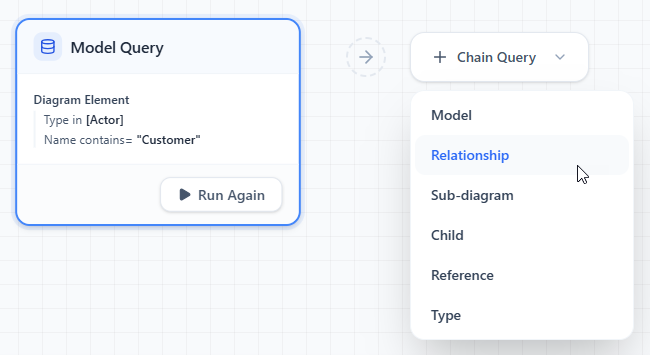
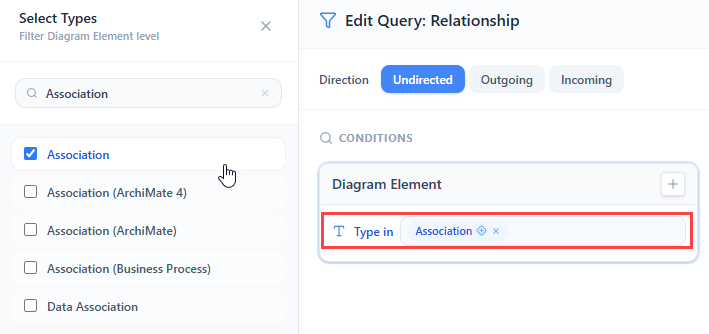
- On the right configuration pane, set the Type in field to Association. Click Execute Query on the Relationship Query component on the left to list the 5 connecting associations.
- To resolve the actual use cases behind those associations, add another query step: click Add Chain Query on the right of the Relationship Query component and select Model.
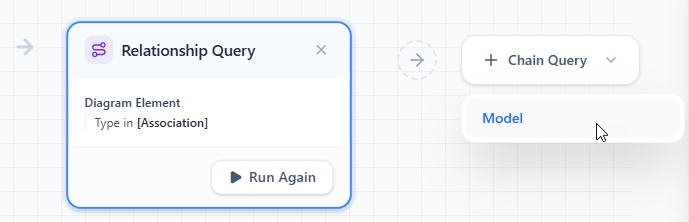
- On the right pane under Diagram Element, set the Type in field to Use Case. Click Execute Query on the left Model Query component.
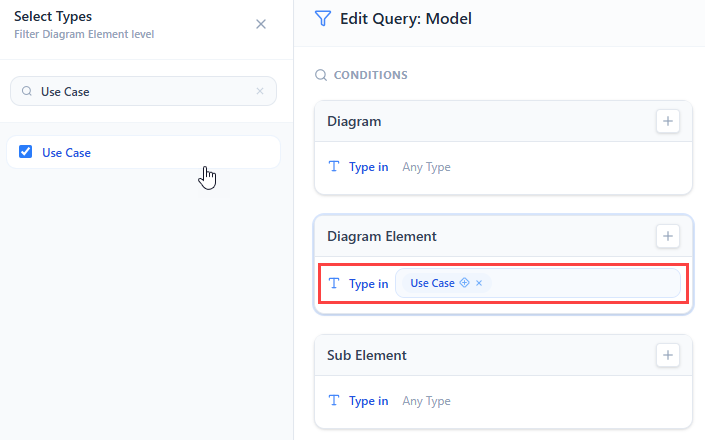
- You now have your final result: 5 use cases listed in the Query Result.
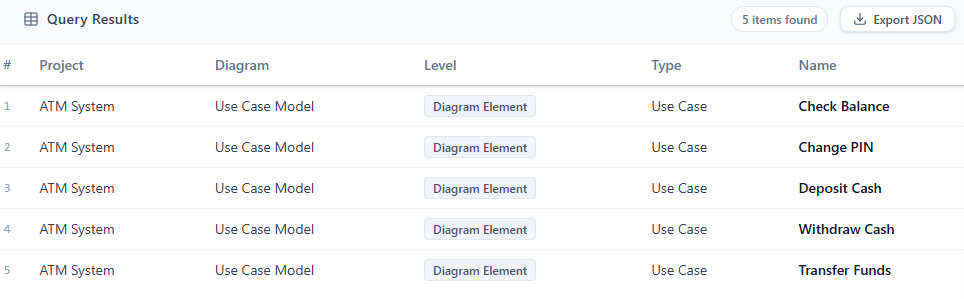
To save or feed this data into AI tools for further analysis, click Export JSON at the top right of the result box.

3. Query by Hierarchy
What it does & When to use it: Query by Hierarchy allows you to extract structural elements organized within packages, projects, and diagrams (such as retrieving all classes under a specific model package). It outputs structured JSON data, making it perfect for automated documentation or programmatic data extraction.
Visual Reference: Keep the Simple MVC Class Model and its package structure in mind as we query elements nested within the package hierarchy.
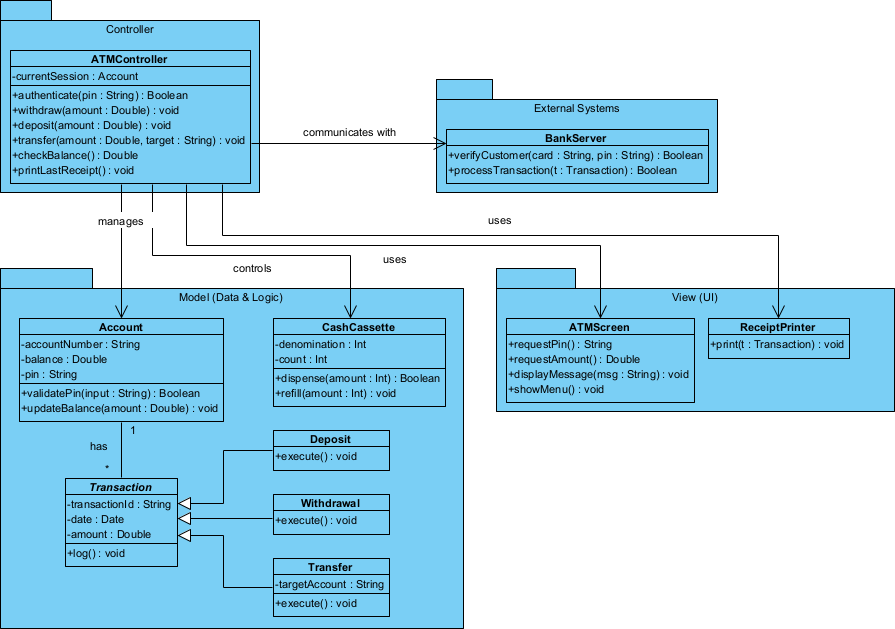
Constructing a Hierarchical Query
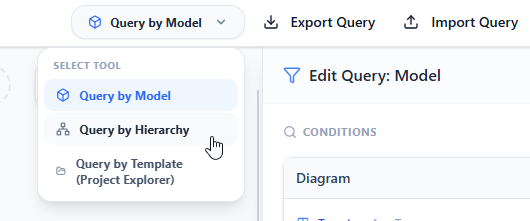
- Select Query by Model at the top right and choose Query by Hierarchy.
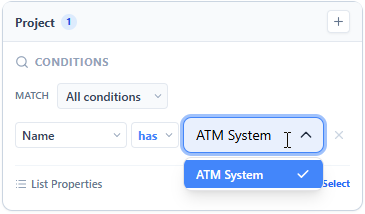
- Under the Project section on the right, click Add condition, keep the default Name property, and set the value to
ATM System.
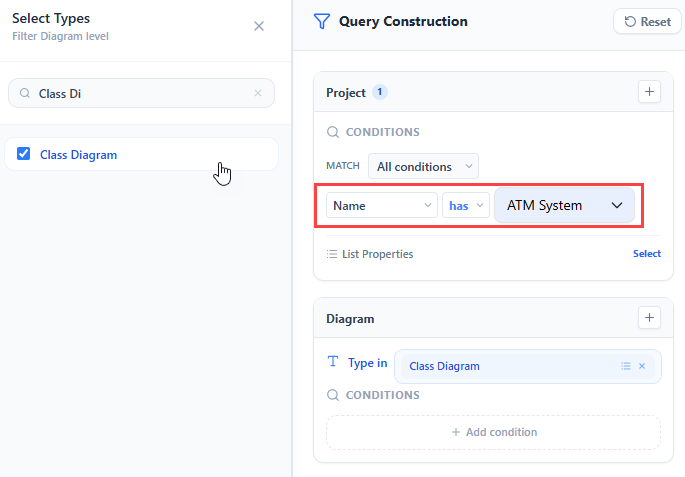
- Under the Diagram section, click the Type in field and select Class Diagram.
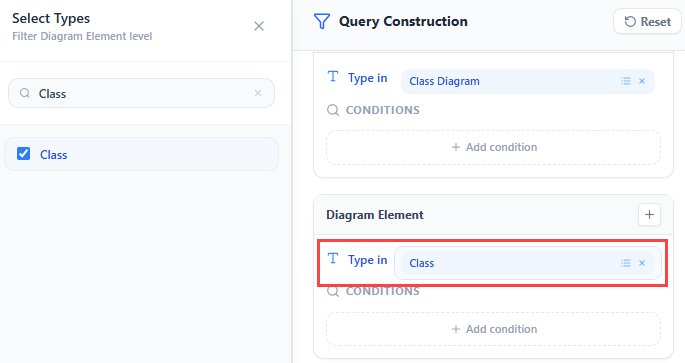
- Under the Diagram Element section, click the Type in field and select Class.
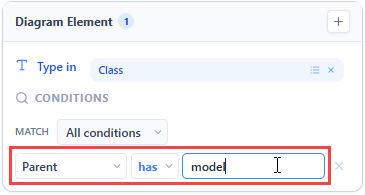
- Click Add condition. Change the property field to Parent, keep the operator as
has, and enter model as the value. *(Using “has” allows partial matching for packages like `Model (Data & Logic)`, whereas “is” requires exact matching).*
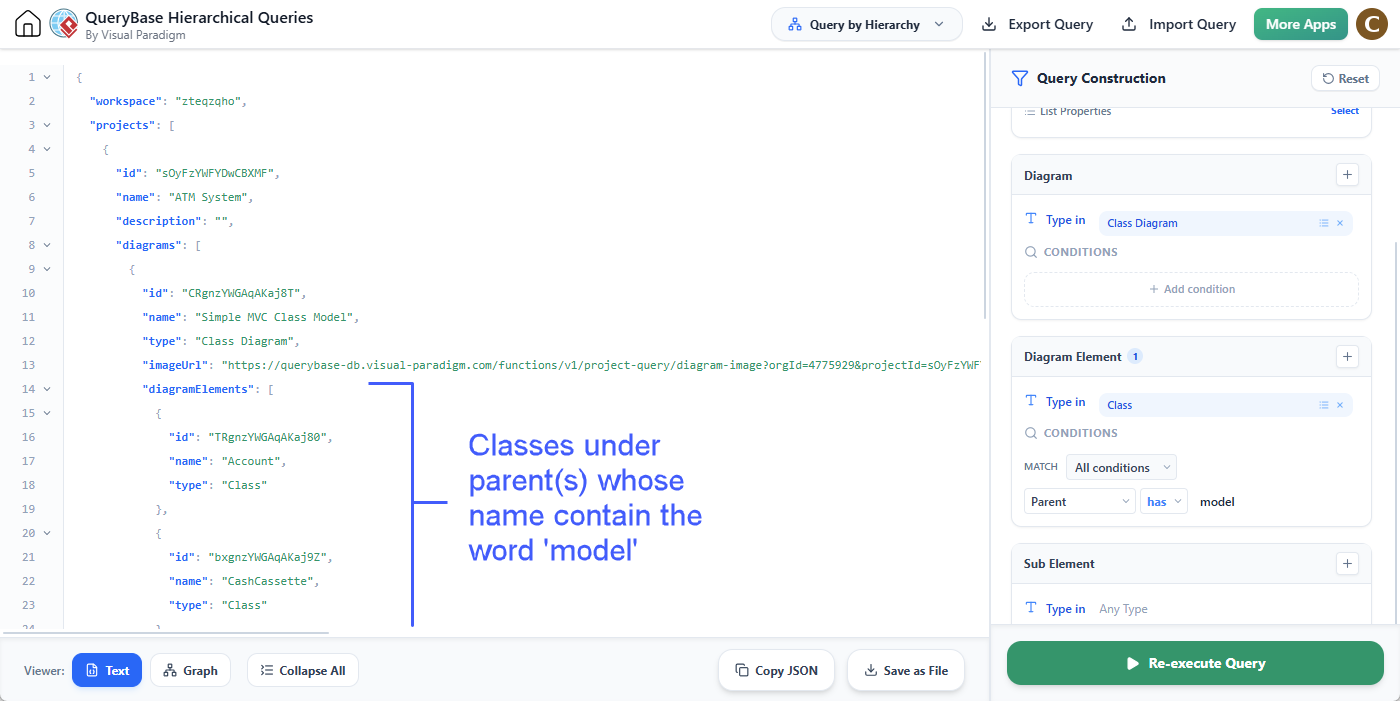
- Click Execute Query at the bottom. The resulting data is rendered as a JSON structure on the left (Projects > Diagrams > DiagramElements), displaying each class object with its
id, name, and type.
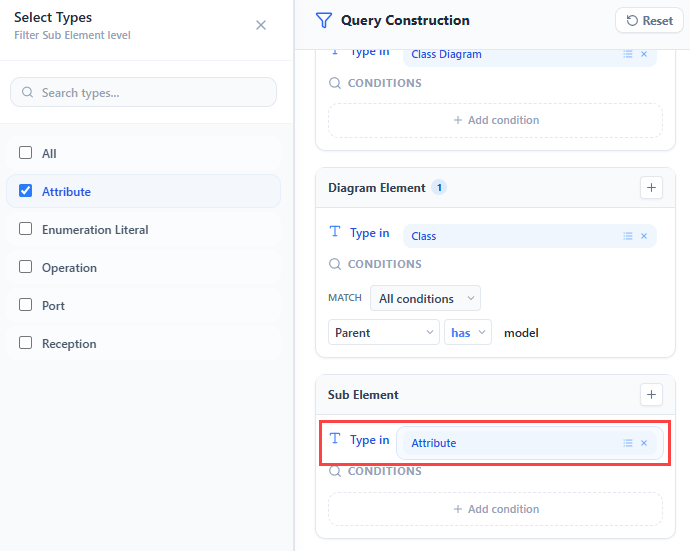
- To enrich your query to include class attributes, locate the Sub Element section directly below Diagram Element, click the Type in field, and select Attribute.
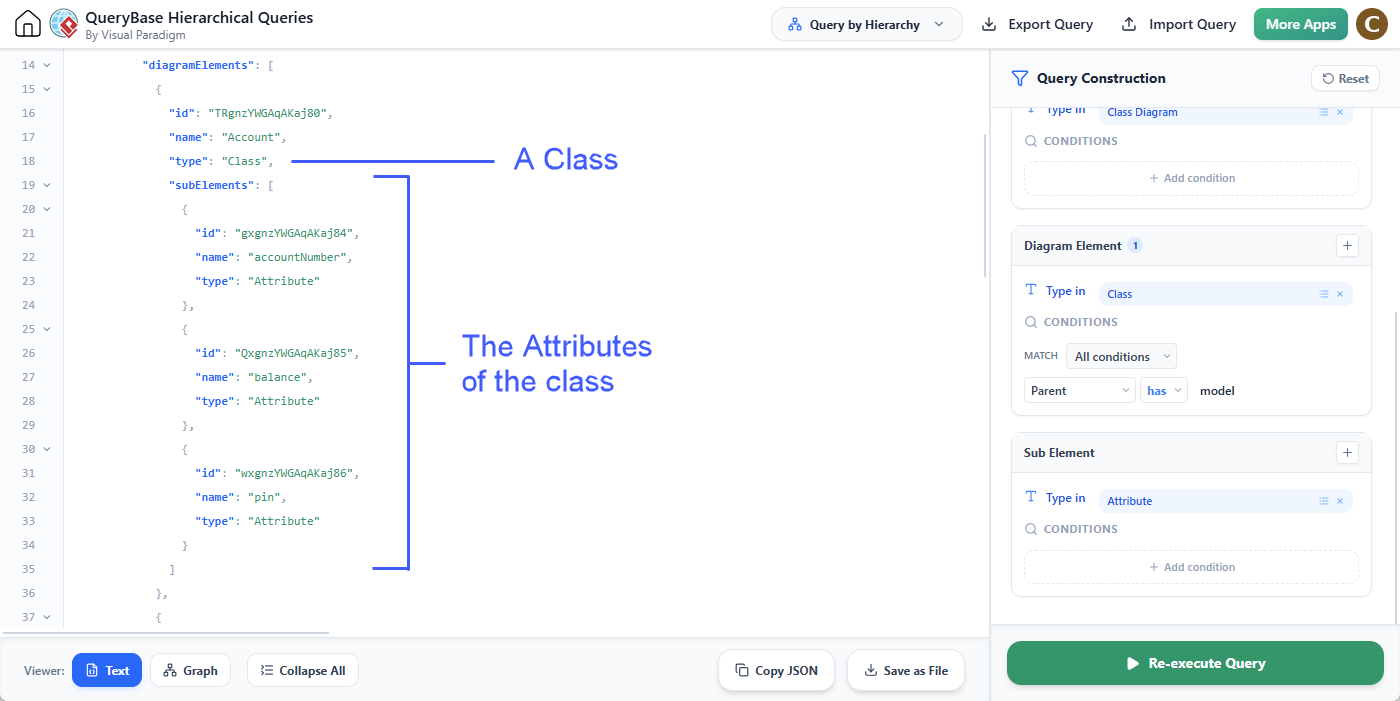
- Click Re-execute Query. The JSON result updates dynamically to include the attributes associated with each class.
- Finally, click Save as File to download a local copy of the generated JSON data.