What is the Unified Platform?
The Unified Platform is the centralized ecosystem hub and control center for your Visual Paradigm workspace. While specialized apps handle coding, diagramming, querying, and documentation, the Unified Platform acts as your master workspace directory—functioning much like a cloud drive designed specifically for technical architecture and enterprise artifacts.
It is the foundational launchpad where all your created assets converge, enabling seamless cross-application navigation, personalized app pinning, and rapid artifact creation.
Understanding the Interface & Navigation Hub
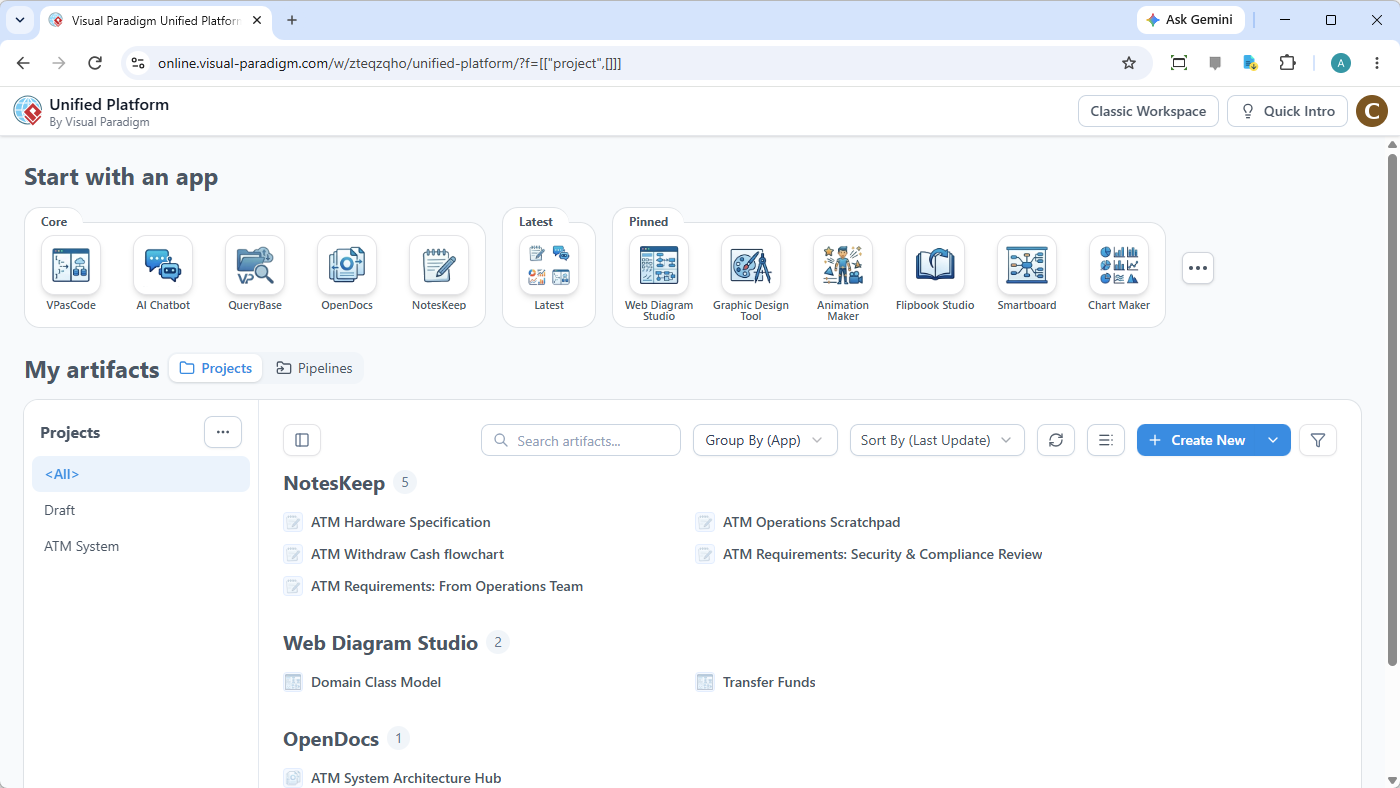
When you log into your Playground workspace, the Unified Platform presents a clean, modular layout split into two primary zones: the App Navigation Bar at the top and the My Artifacts Repository below.
1. App Navigation & Customization (Top Section)
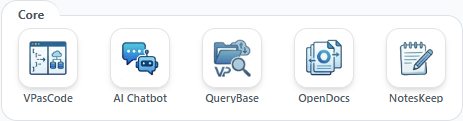
- Core Apps (Top Left): Provides instant, one-click access to the core ecosystem applications you use most frequently, including VPasCode, AI Chatbot, QueryBase, OpenDocs, and NotesKeep.
- Pinned & Latest Apps: Displays recently used applications alongside custom-pinned apps. You can pin your favorite ecosystem tools for immediate access across sessions.
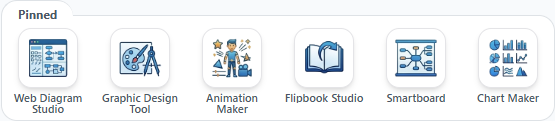
2. “My Artifacts” Repository & Project Management (Lower Section)
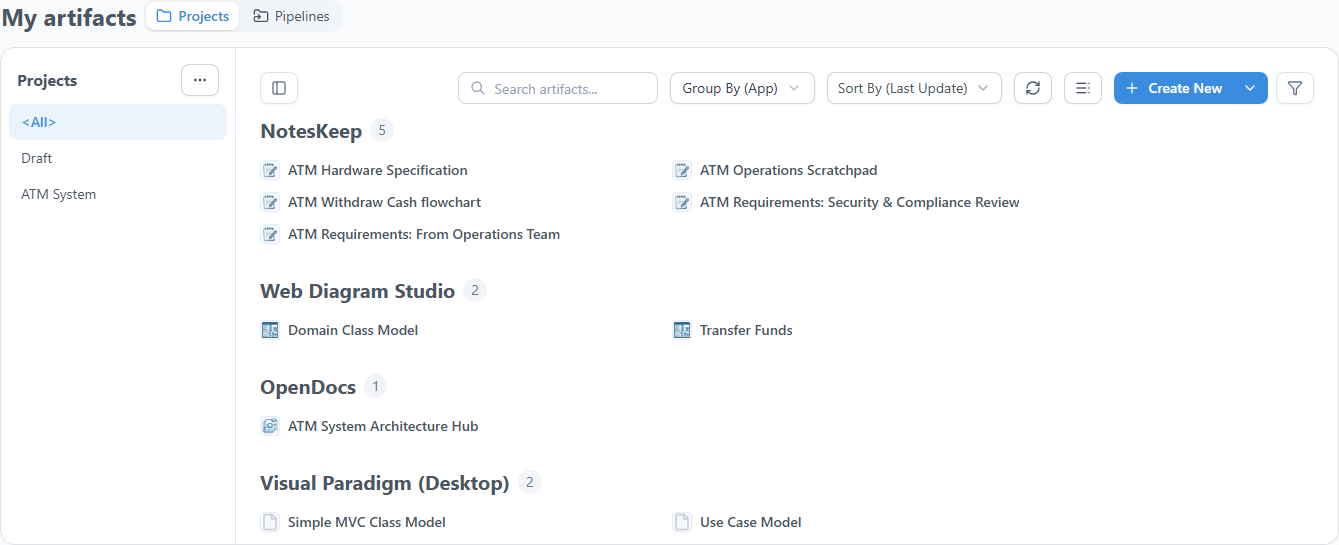
- Project Filter Sidebar (Left): Organizes your workspace projects (such as
ATM SystemandDraft). Selecting a project instantly filters all visible artifacts belonging to that specific initiative. - Artifact Grouping & Sorting: Group your assets by application (OpenDocs, Desktop Models, NotesKeep, Web Diagram Studio) or sort them by last updated date.
- Pipelines Tab: Tracks staged assets moving across cross-app pipelines (such as diagrams sent from VPasCode or AI Chatbot awaiting retrieval in OpenDocs).
Hands-On Evaluation: Exploring & Editing Artifacts
Because the Unified Platform serves as your central repository, your Playground workspace comes pre-loaded with sample artifacts from the ATM System project. Let’s explore how to navigate and start editing them directly.
Step 1: Inspecting Pre-Loaded Project Artifacts
- Open the Unified Platform dashboard. Look at the left sidebar under Projects and click on ATM System to filter your view to the evaluation project.
- Observe how the artifacts are grouped by application in the main workspace view:
- OpenDocs:
ATM System Architecture Hub - Visual Paradigm (Desktop):
Simple MVC Class ModelandUse Case Model - NotesKeep:
ATM Withdraw Cash flowchart,ATM Requirements: Security & Compliance Review, andATM Requirements: From Operations Team - Web Diagram Studio:
Transfer Funds
- OpenDocs:
Step 2: Clicking an Artifact to Start Editing
- Find the NotesKeep section in your artifact list and click directly on the artifact named
ATM Requirements: From Operations Team.
- The platform instantly launches the corresponding app and opens the note, allowing you to review or modify its content immediately.
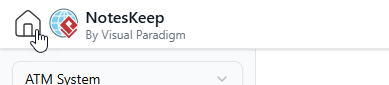
- Click on the Home icon at the top left of the app bar to return to the Unified Platform hub.
Step 3: Creating New Artifacts on the Fly
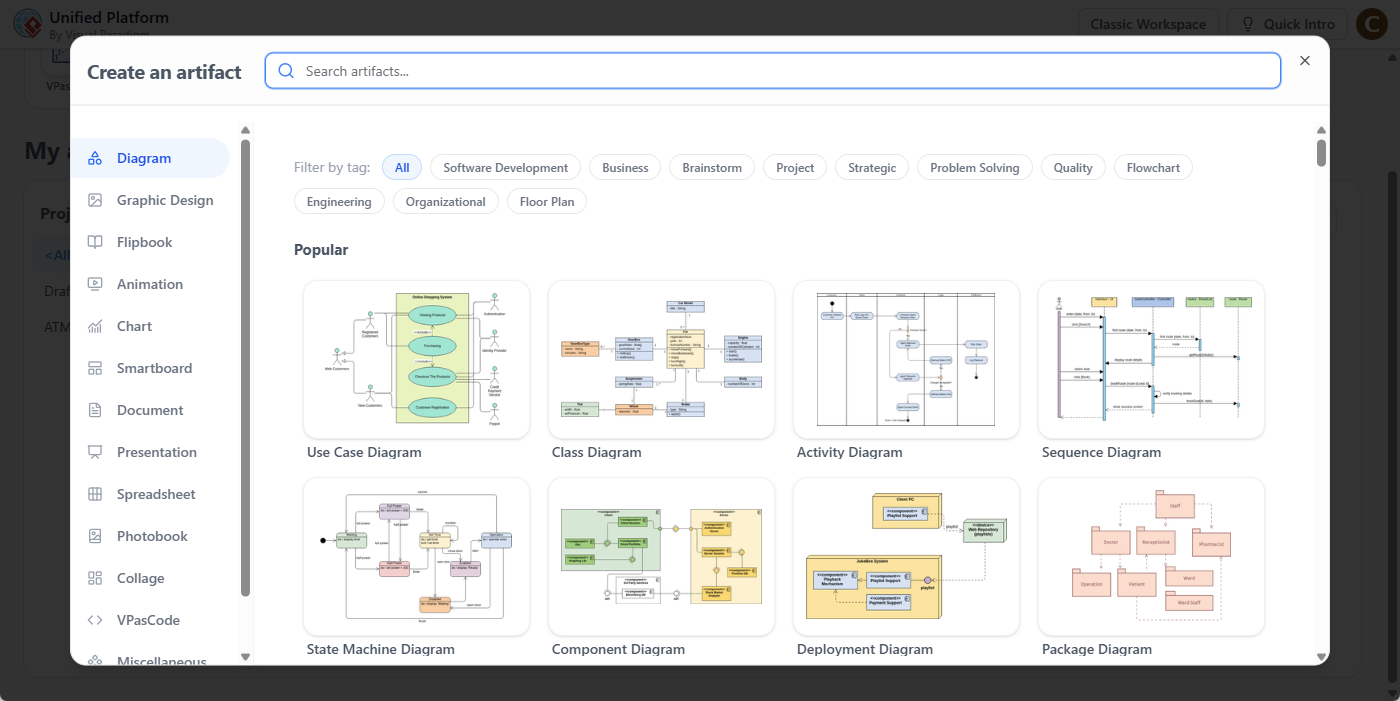
- At any time, click the prominent blue + Create New button located on the top-right toolbar of the artifacts panel.
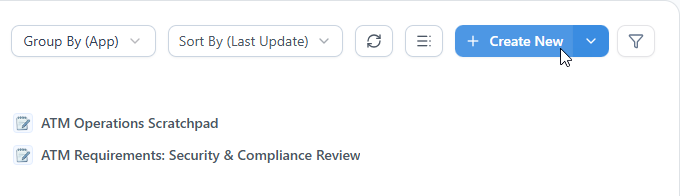
- Choose your target artifact or diagram type from the menu to spin up a new creation workspace without needing to navigate into individual apps first.